Let's connect. We'll take it from here.
Your technician invited you here. Choose your device below, follow the steps — and stay on the phone with us.
Windows
Download RustDesk
Click below. Save the file to your Downloads.
Download for WindowsInstall
Open your Downloads (Ctrl+J), double-click the rustdesk….exe file. If Windows shows “protected your PC” → More info → Run anyway, then Next → Install.
Configure the Aptitude server
In RustDesk → the ⋮ menu next to your ID → Network → Unlock. Then paste the two values below:
ID server
Key
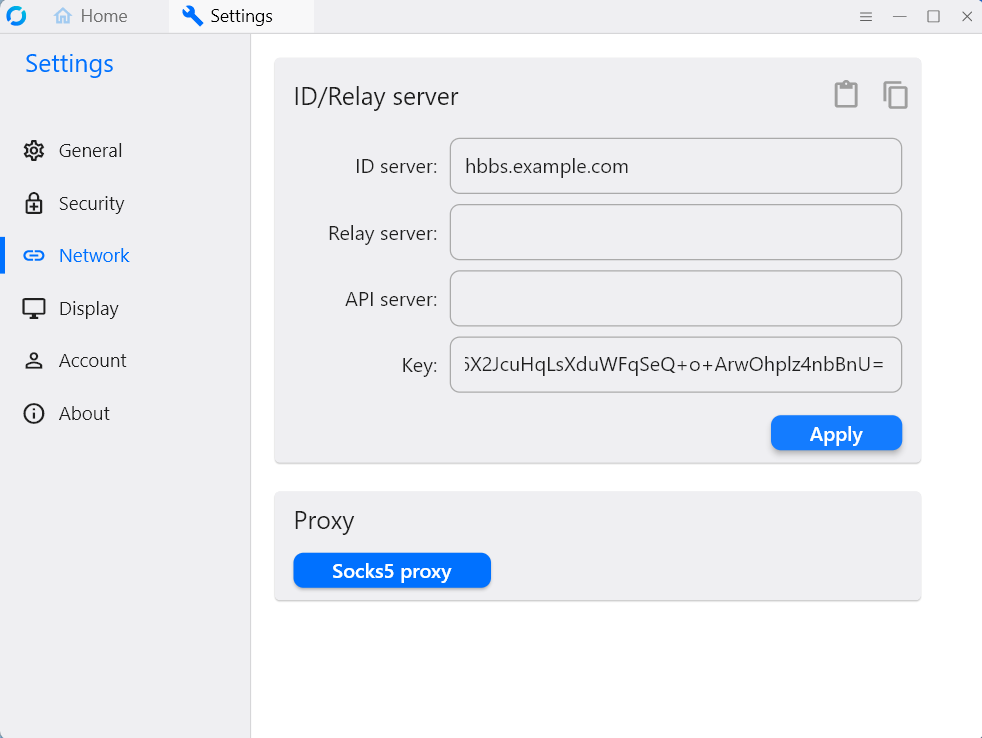
Screenshot — official RustDesk documentation
Give your ID number to the technician
The ID number appears at the top left of RustDesk. Read it to the technician on the phone.
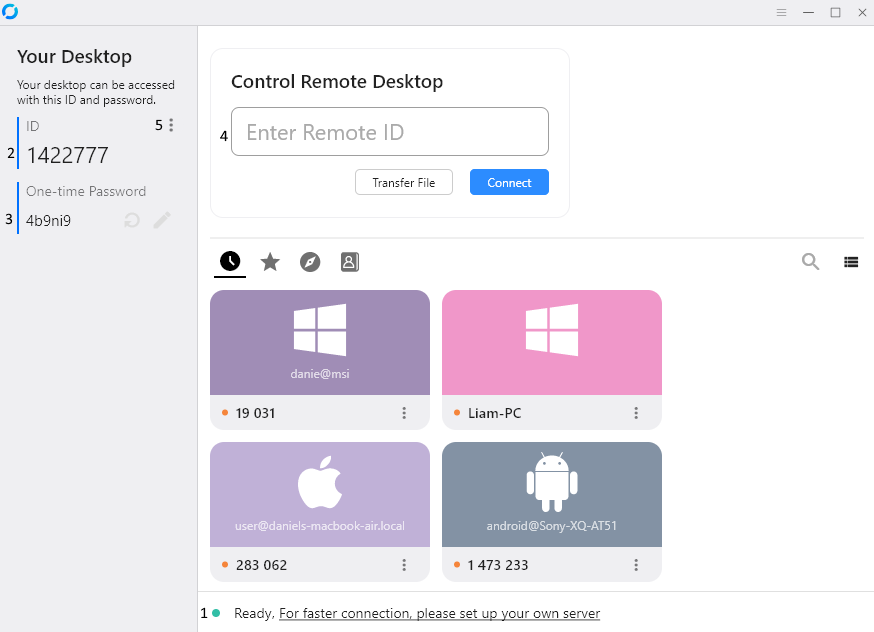
Authorize the connection
When the technician connects, a RustDesk window appears — click Accept.
macOS
Download
Choose the version that matches your Mac (when in doubt, ask the technician).
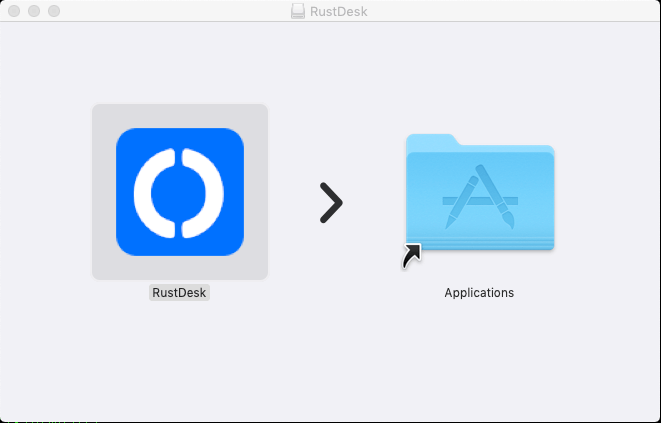
Drag RustDesk into the Applications folder
Network + ID
Same configuration as for Windows (step 3): use the ID server and Key shown in the Windows section above.
Authorize the connection
When the technician connects → click Allow.
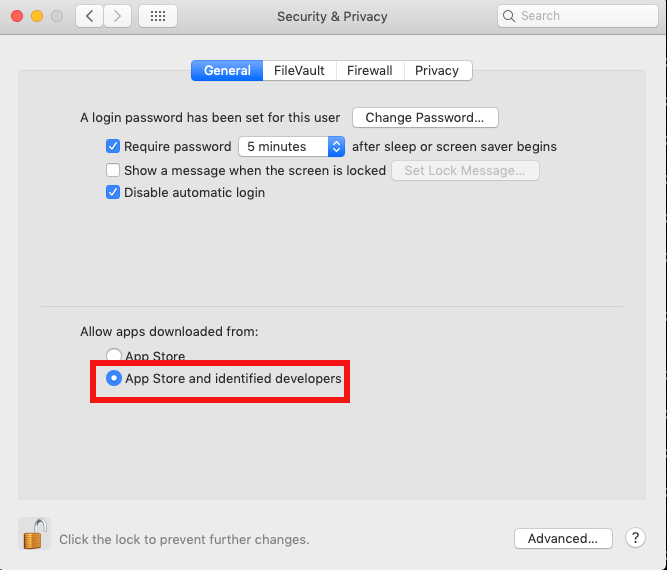
Screenshot — official RustDesk documentation
Linux
Download the right package
Choose the package for your distribution, install it, then configure the network as for Windows (step 3).
Network + ID
Use the ID server and Key shown in the Windows section above, then give your ID number to the technician.
Android
Configure and authorize
Settings → ID / server in RustDesk. The technician will guide you on the phone, then authorize the connection.
iPhone / iPad
Configure the network
After installation → Settings → Network in RustDesk. Call your technician at 450 605-1015 for the configuration.